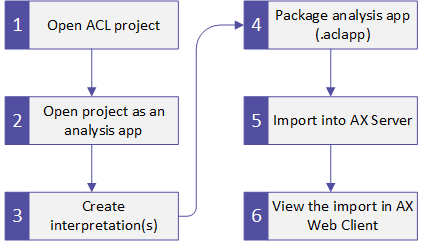
Create an interpretation on your local computer using the Analysis App window and then import the interpretation into AX Server as part of a packaged analysis app (.aclapp file). When the interpretation's source table is updated by analytics running on AX Server, the interpretation dynamically updates to visualize the new data.
To complete this quick start, you need the following:
Note
By default, the sample data projects are installed at C:\Users\username\Documents\ACL Data\Sample Data Files on your local file system.
You are your organization's data visualization expert, and you need to create an interpretation for a specific table that other users can view in AX Web Client.
To do this, you use ACL Analytics to open the project and then create the interpretation in the Analysis App window. Once you create the interpretation, you package the analysis app and import the package into AX Server so it is available for use with analytic results data.
Start by opening a project locally using ACL Analytics and creating an analytic script:
From tree view, open Scripts\Calculate_Median_Value and add the following line inside the comment block on line 2 of the script editor and then save and close the script:
//Analytic test
Note
The project requires at least one analytic script to be imported as an analysis app on AX Server. You use Scripts\Calculate_Median_Value to satisfy this requirement so that you can import the interpretation, however the functionality of the script is not part of this quick start.
The Analytic tag identifies the script as an analytic and is required before importing. Lines 1 to 10 of the script should look as follows:
Comment
//Analytic test
**   NOTICE:
**   ACL provides the attached script "as is" and free of charge.
**   ACL makes no warranties or representations with respect to
**   the script, including its quality or fitness for a particular
**   purpose. You understand and acknowledge that you assume all
**   risk of loss or damages which may arise from your use or
**   inability to use the script.
END
For this quick start, you will use the Ap_Trans table in the Table\Accounts_Payable folder to create an interpretation.
Open the project as an analysis app in the Analysis App window so that you can create the interpretation.
In the Overview tab, right-click Sample Project.ACL and select Open as Analysis App.
The Analysis App window opens and displays the list of data tables.
Open the Ap_Trans table in the Visualizer and create the interpretation:
 and select Line Chart.
A new analysis app file called Sample Project.aclx is visible in the Windows folder that contains the ACL project. This file stores the interpretation you created.
Now that the interpretation exists in the analysis app, you must package the analysis app so you can import it into AX Server:
At the bottom of the dialog box, select Include Interpretations.
Note
If you omit this step, the interpretation is not included in the packaged analysis app and is not imported into AX Server.
The packaged analysis app must have the same location and file name as the project file (.acl) to include the interpretation.
Verify that the dialog is configured correctly and click OK.
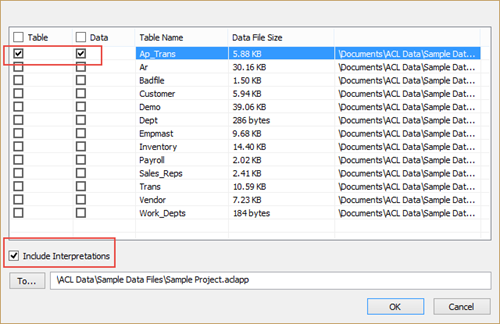
A new packaged analysis app file called Sample Project.aclapp is visible in the Windows folder that contains the ACL project. This file stores the interpretation you created and you can import it into AX Server.
Before you can import the packaged analysis app, you must create a destination collection and folder in the Working directory of AX Server:
Name the collection something meaningful.
This folder is the target for your project import, so use a name that identifies the source ACL project, such as Sample.
The packaged analysis app and destination folder both exist, so you can now import the interpretation into AX Server.
Now that the import is prepared and packaged, import the packaged analysis app:
The import is complete and the data table is on AX Server with its associated interpretation. Now you can open the interpretation to verify that it is available:
In the row for Ap_Trans, click Saved Interpretations  .
.
The list of saved interpretations expands and the import test interpretation that you imported appears.
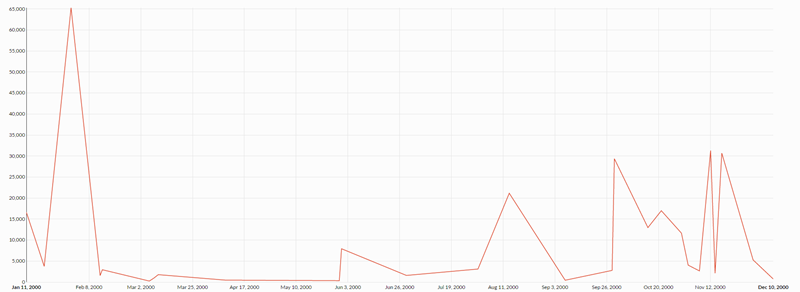
Result The interpretation opens in the Visualizer and you can see the line chart you created in the Analysis App window. Consumers of analytic results in your organization can now sign into AX Web Client and view this chart and see the latest visualized data for this table.