
Creating your profile
If you don't have a profile in the Director Network database, you can create a new profile to add to the Director Network.
-
To claim your profile, on the Home screen, select Claim my Profile.
Note
If you are in Boards and not on the Director Network Home screen, select Navigation menu
 and select Director Network.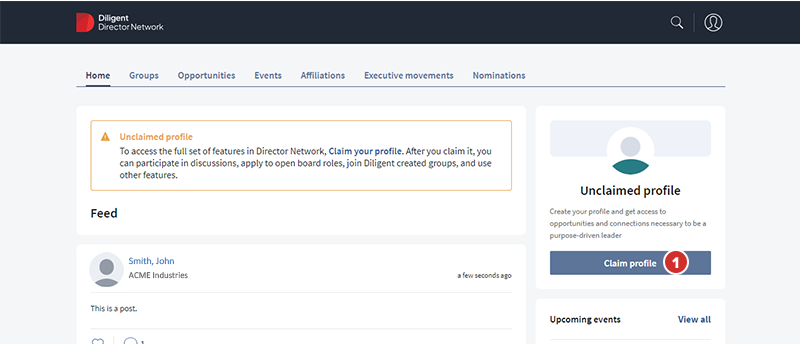
-
Director Network can identify whether an existing Director Network individual profile in the database relates to a user. Director Network suggests a profile for you to claim. If the suggestion is correct, select Claim. If the suggestion is incorrect, proceed to Step 3.
-
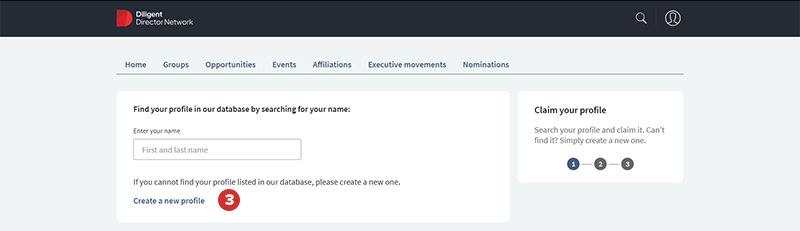
If the suggestion in Step 2 is incorrect and you don't have a profile in the Director Network database, select Create a New Profile.
-
In the Your Information section, enter your first name, last name, and birth date, and select your nationality.
-
(Optional) In the Diversity and Inclusion section, you can edit your gender identity, racial profile, and your sexual orientation.
Note
The Diversity and Inclusion section appears only if you select American as your nationality in the General Information section. If your nationality is not American but you would like to disclose your diversity information so that you appear in the diverse candidate lists, email directornetworksupport@diligent.com
-
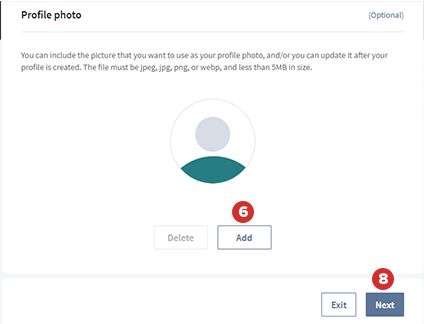
(Optional) To add a profile photo to your new profile, select Add, and select your photo.
-
(Optional) To resize the photo, use the slider, and select Confirm.
-
Select Next.
-
In the Your Company section, enter your company's name, your position title, and your business email, and select Next.
-
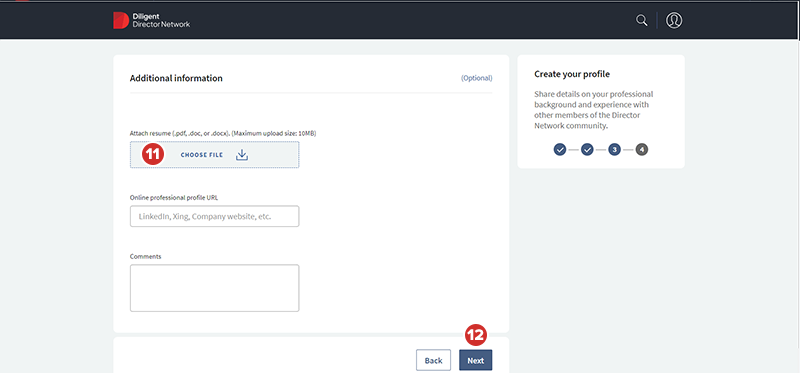
(Optional) In the Additional Information section, you can upload your resume, enter the web address to your online professional profile, and enter any additional comments that you want to make.
-
Select Next.
-
In the Preview and submit section, review your information shown, and check that your details are correct. If any detail is incorrect, select Back, and update the field in a previous section.
-
Select the I acknowledge that I am the person above and I agree to the Terms of Service and Privacy Policy checkboxes, and select Submit.
-
Select Finish to complete creating your profile. After you create your profile, the Profile section on the Home Feed updates to state that your Claim is pending. Diligent will contact you to confirm your request. After Diligent adds your profile, it will automatically claim it for you, and update the Profile section with your new profile.
After Diligent confirms your profile that you created, you can also edit some of the information it contains.
