Administration tasks
Global administrators and Business area managers have an Administration option in their profile which allows them to undertake certain admin tasks. Here we look at the options and view available when logged Diligent Workflow .
The Administration view and edit rights are determined by the access level.
-
Global administrators have full administration rights and can create and edit all areas within their view.
-
Business area managers have view and edit rights to their business area.
Administration view
To open the Administrator view, go to your profile and select Administration from the menu.
-
The view opens on the Administration tab and presents a view of all your admin areas in card format.
-
Select the card or the tab on the toolbar to open the area you want to manage.
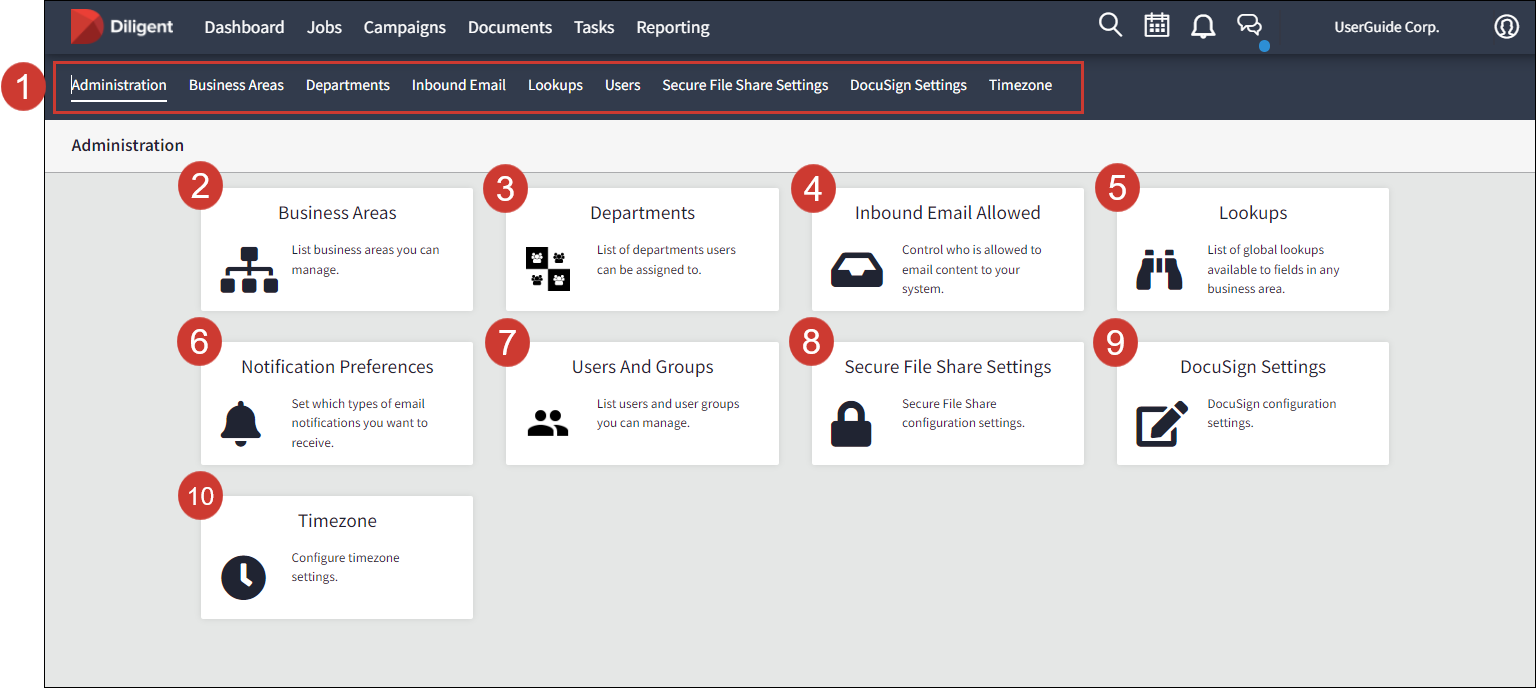
| Number | Area or tab name | Description | Permissions |
|---|---|---|---|
| 1 | Tab bar | Access your administration tasks by selecting the relevant area in the tab bar. | Your view depends on admin access level. |
| 2 | Business Areas | Edit values and permissions specific to your business area. For further information go to My Business Areas. | Global Administrator and Business area manager |
| 3 | Departments | Edit users assigned to departments. For further information go to Manage Departments in Diligent Workflow. | Global Administrator |
| 4 | Inbound Email Allowed | Restrict emails coming into your Diligent Workflow site. For further information go to Manage inbound emails. | Global Administrator and Business area manager |
| 5 | Lookups | Edit or add to the Lookup lists used in job briefs and checklists. For further information go to Create and edit my Lookup values |
Global Administrator Business area managers can view Lookups specific to their business area accessed from the Business Area tab. |
| 6 | Notification Preferences | Determine and set your email notification preferences. | Global Administrator and Business area manager |
| 7 |
Users Note In the card view this option is labeled Users and Groups. |
Create and edit users and user groups. |
Global Administrator Business area managers can edit users in User groups associated with their business area. |
| 8 | Secure File Share Settings | Diligent Workflow can integrate with Secure File Sharing to allow content to be securely shared and copied. This is where you enable that integration. | Global Administrator |
| 9 | DocuSign Settings | Global Administrator | |
| 10 | Timezone | Set your preferred timezone to be applied across activities and notifications in Diligent Workflow. | Global Administrator |
