Customise my job view
You can customise the columns and their layout in your predefined Job tabs as well as create new custom views to suit your needs.
Create a Custom view
Create a new view and customise the columns.
-
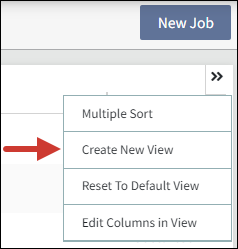
Select the double chevron icon
 .
. -
Select Create New View from the menu.
-
Enter the view name in the New View dialog.
-
Select OK.
-
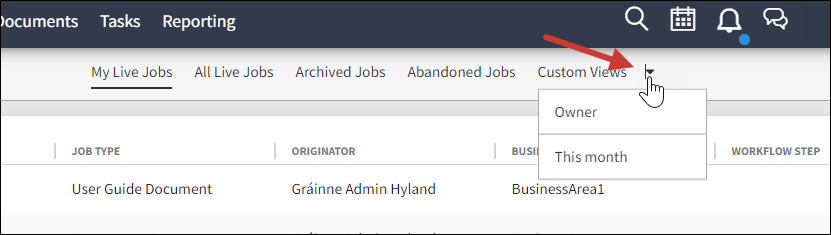
Select the arrow icon next to Custom Views to open a menu displaying your new view. Here you can select the view.
Remove a Custom view
-
Select the view from the Custom View list.
-
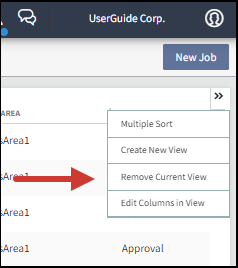
Select the chevron icon
. -
Select Remove Current View from the menu.
Multiple Sort
Sort the jobs in the order you want to see them.
-
Go to the tab view you want to sort. Example: My Live Jobs or All Live Jobs.
-
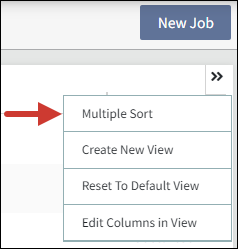
Select the double chevron icon
. -
Select Multiple Sort from the menu.
-
Select the column you want to apply the sort to from the Columns in this View panel and move it to the adjacent panel.
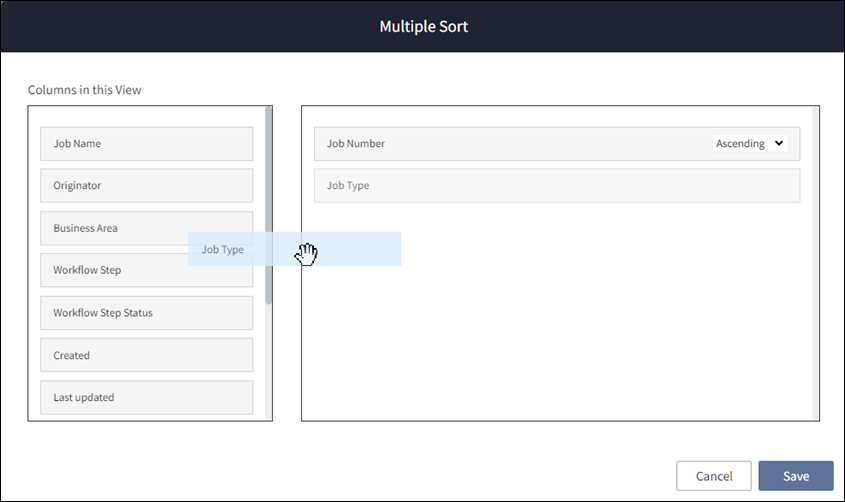
-
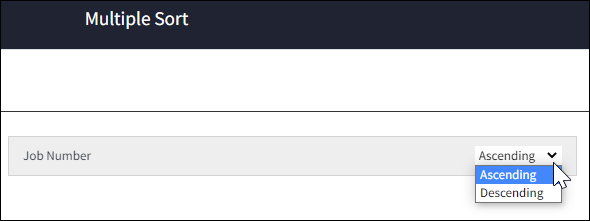
Set Ascending or Descending order.
-
Select Save.
Reset to default view
The default setting is Job number in ascending order.
-
Go to the tab view you want to reset. Example: My Live Jobs or All Live Jobs.
-
Select the double chevron icon
. -
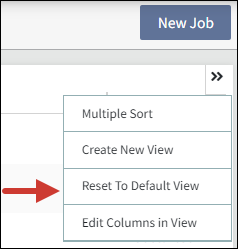
Select Reset To Default View.
Customize the column layout
You can customize the layout of columns in any Job tab.
-
Go to the tab you want to customize.
-
Select the double chevron icon
. -
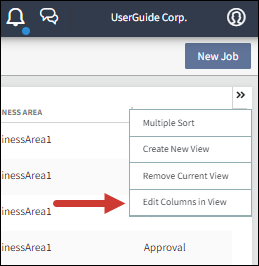
Select Edit Columns in a view.
-
Add columns by selecting a column from Available Columns and moving it to the Columns in this View section.
-
Remove columns by selecting a column from Columns in this View and moving it to the Available Columns section.
-
Reorder the columns by selecting one and moving it to the preferred position. Keep doing that until they appear in the order you want.
-
Filter columns
The columns in your Job tabs can be sorted alphabetically, numerically, and in date order. There are 2 ways to do this.
-
Go to the Job tab you want to view.
-
Quick sort: Select the column title to set the jobs in ascending or descending order.
An arrow appears next to the heading indicating its sort order.

-
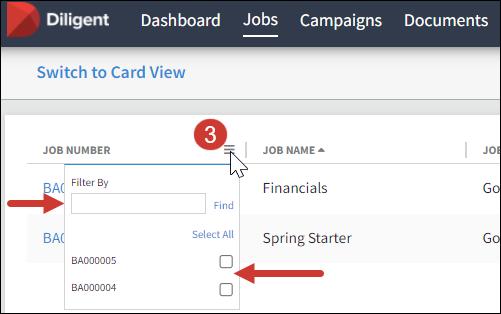
Filter Sort: Hover your cursor over the right-side corner of the column title field to display the menu icon and select it to open the filter options. There are two.
-
Enter the criteria in the Filter By field and select Find.
-
Or select the checkbox next to the items you want to view.
Note
A filter icon
 appears next to the column heading to indicate a filter is applied. To remove the filter, untick the box next to the selected filter or select Remove Filter.
 -
