Use the discussions channel
Discussion channels are specific to Tasks in Diligent Workflow as they capture and track additional decision-making for future audit purposes. It’s like a messaging system. You can view all the discussions you've been involved in.
Note
A blue dot next to the discussion icon  on the toolbar indicates unseen messages.
-
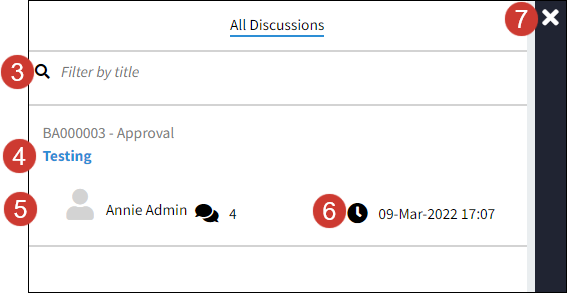
Select the discussion icon
 on the toolbar to open the viewing panel.
 -
A blue bar indicates an unread comment in a current discussion.
-
Add a Title filter to refine a search.
-
Select the title of the discussion to access the channel.
-
This indicates others in the discussion and the number of comments.
-
This indicates the date and time of the last comment.
-
Select the X to close the panel.
Create a new discussion
Accessed in the Tasks tab, it enables transparency and is used to capture and track decision-making. Start a discussion to make decisions on a task.
-
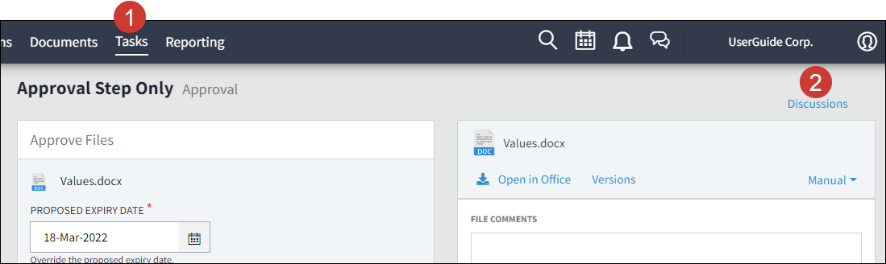
Go to the Tasks tab.
-
Select Discussions.
-
Select New Discussion.
-
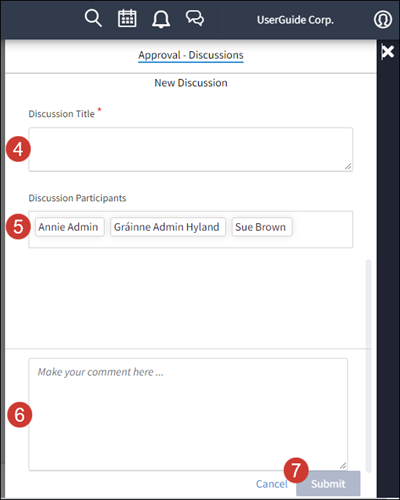
Add a title to your discussion channel.
-
Anyone assigned to the task will automatically be included in the discussion channel.
Note
You can edit - add or remove - participants after creating your discussion channel depending on your permissions.
-
Enter your comment.
-
Select Submit.
Note
Anyone listed in the Discussion Participants box will receive an email notification to advise of the new comment. A blue dot will also appear next to the Discussion icon on the toolbar on their Diligent Workflow page.
Add to an existing discussion
When you are included in a discussion in Diligent Workflow, you will be notified by email. A blue dot will also appear on the discussion icon on your toolbar.
-
Go to the discussion icon
on your toolbar. -
Open the discussion channel you want to view.
-
Enter your comment.
-
Select Submit.
The chat participants will be notified of the comment you added to the discussion.
