View your calendar
Your calendar is a way to view all upcoming events assigned to you. You can also view the calendars of others in your business area.
-
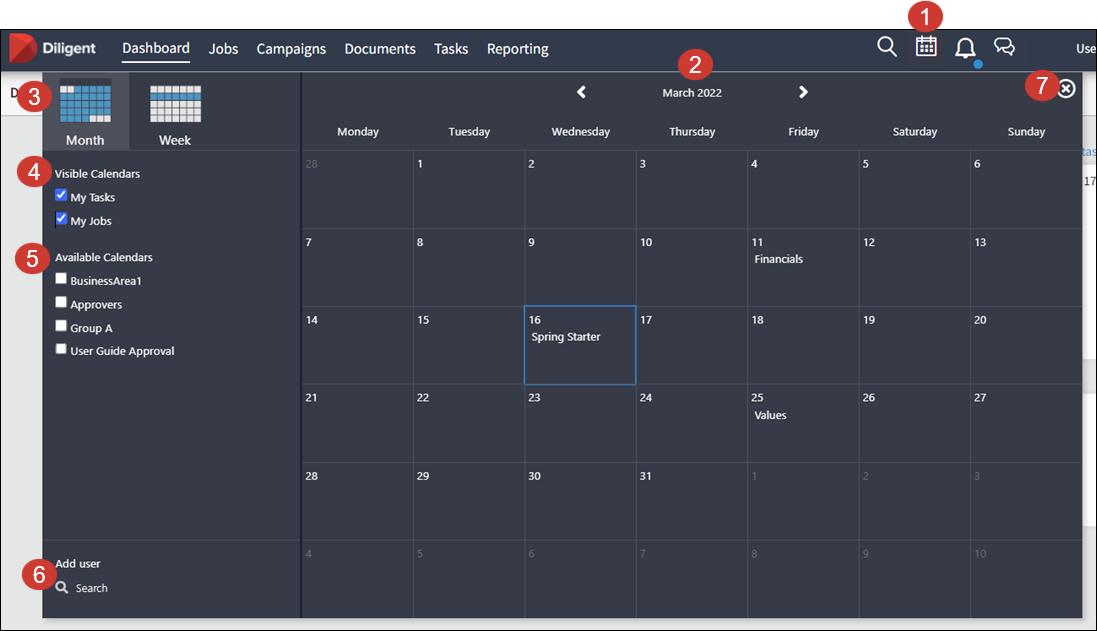
Select the calendar icon
 in your toolbar to open the calendar view.
 -
This displays the current month. Select the arrows on either side to change the month.
-
Select the Month or Week view.
-
Select the assignment type you want to view.
-
Add calendars to your view by selecting from the list of Available Calendars. The options listed will depend on your permissions.
-
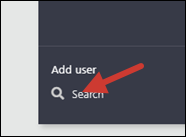
Enter the name or email in the area next to the Search icon if you want to add the calendar of a user from your business area or group.
-
Select the X icon to close the calendar view.
Calendar view
-
Items appear in the calendar view if they are due.
-
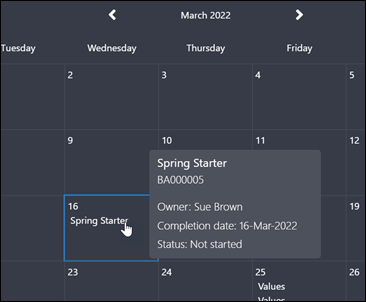
Hover over the entry to see a snapshot of the item.
-
Select the calendar entry to go to the Task/Job/Campaign.
Note
Preferences are not saved. Next time you open your calendar view, you must add your preferences again.
