Manage files in your Job
In the Files tab of your Job you can add and view files and folders and manage access permissions. Files must be uploaded to a Job before a Workflow can be started.
All Files panel
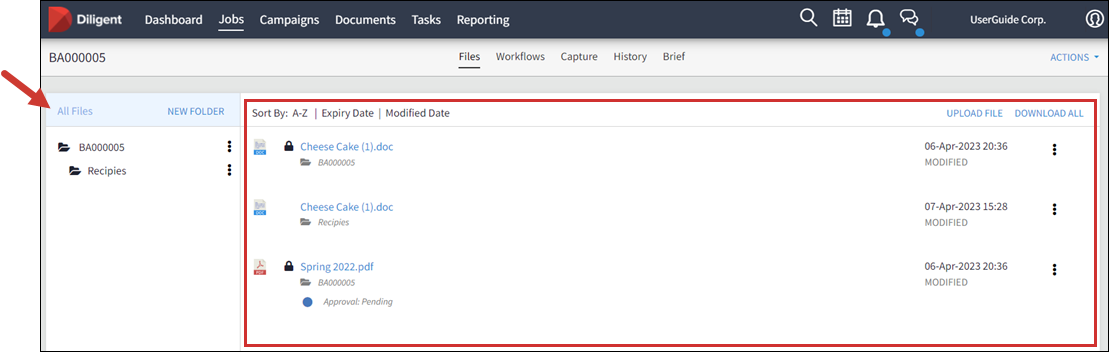
View the folder structure for a Job, select specific folders to view, and create new folders.
-
Select All Files to view files saved to the job.
-
Select a folder to view files saved to that folder.
-
Select a folder's more options icon
 to open a menu. The menu presented will depend on your permissions.
 -
Rename - Change the folder name.
-
Delete - Delete the folder. All content in that folder will be removed.
-
Download - Download a zipped file to your device.
-
Permissions - Set custom permissions for the file.
-
Files View
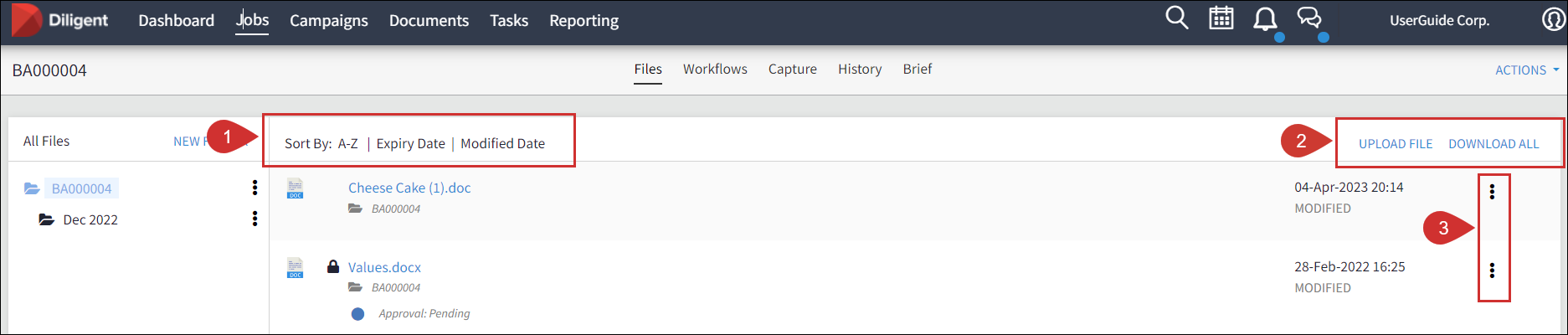
View, edit, and download saved files as well as upload new files. You can view the status of a task as well as the dates of any modification.
-
Sort the order of the files alphabetically, by expiry date or when last modified.
-
Upload a file or download all files in a zipped file.
-
Select the more options icon of a file to open an additional actions menu.
Note
If you have an approved online application you can open the file by selecting the file title.
Upload a new file to a Job
-
Select your Job and go to the Files tab.
-
Select the destination folder from the list.
-
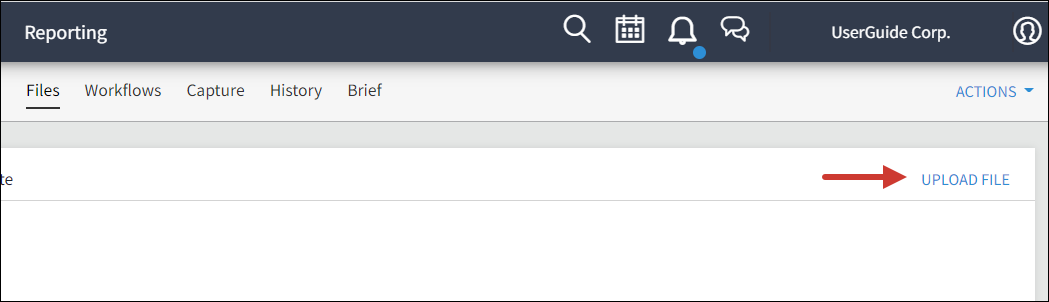
Select Upload File.
Note
You can also use drag and drop to upload a file.
-
Select the file you want to upload from your device. The file will appear in your folder.
Create a new folder in a Job
Create folders and subfolders to keep your files organized.
-
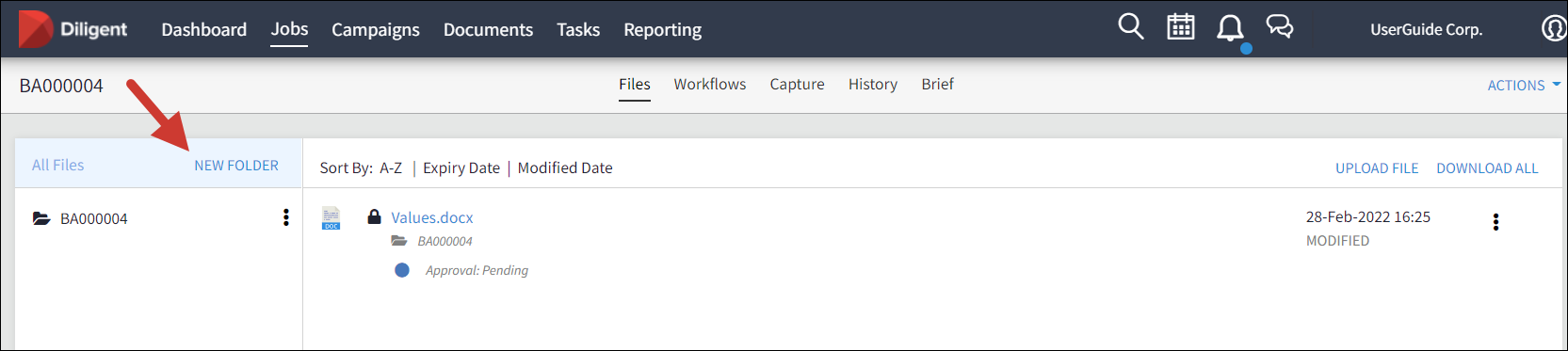
In your Job, go to the Files tab in your menu bar and select New Folder.
-
Enter the folder name in the New Folder dialog and select Create.
-
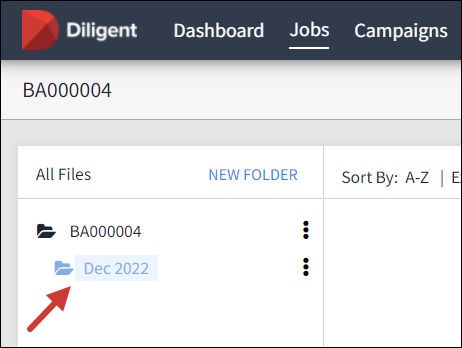
The folder will appear as a subfolder in your files navigation bar.
Edit a folder
-
In the navigation bar of your Job select the folder’s more options icon
 . The menu presented will depend on your permissions and you can't edit the main Job folder.
 -
Select the edit option from the menu.
Edit options
|
Options |
Description |
|---|---|
|
Rename |
Change the name of your folder, enter the new name in the Folder name field and select Update. |
|
Delete |
Select Delete to remove a folder from the Job. |
|
Download |
Select OK to download a folder as a zipped file to your device’s Downloads folder. |
|
Permissions |
|
 and choose a permission type from the dropdown.
Edit a file
-
In the Files view of your job select the file’s more options icon
. The menu presented will depend on your permissions. -
Select the option from the menu.
Menu options
|
Option |
Description |
|---|---|
|
Rename |
Enter the new name of the folder and select the Save icon. |
|
Delete |
Select Delete to remove a folder from the Job. |
|
New Version |
Upload a new version of the file from your device. |
|
Download |
Download the file to your device. |
|
Versions |
Display versions of the file. Select the file title of any version to download to your device. |
| Lock | This locks the file and prevents anyone from making any changes. A notification appears on the file stating who has locked it. |
