
Share and publish agenda
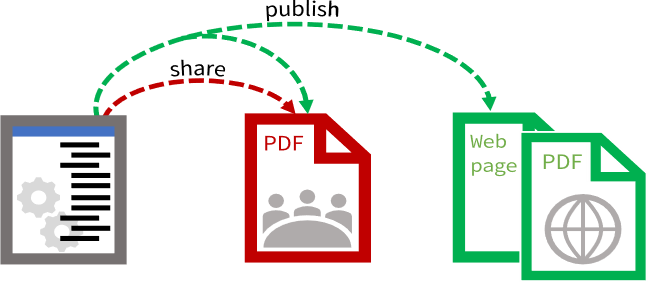
After using the Agenda Builder to update content and add attachments, you can share the meeting packet with members and admins. Members can view the shared meeting packet and then add private notes and comments to the agenda. When you publish the meeting packet, the public version of the agenda is available on the Public site.
Sharing a meeting packet makes the confidential agenda and attached documents available to group members. The shared, confidential version of the agenda is available as a PDF, and it includes items to be covered in closed or executive sessions.
Publishing a meeting packet makes the open agenda and its attachments available on your Public site. When you publish a meeting packet, you automatically share it with group members, admins and the public. If you have previously shared the meeting packet, the members’ version is automatically updated. The published PDF version of the agenda does not include items from closed or executive sessions.
Select Filter on the All meetings page to filter meetings by their agenda status, such as shared or published.
To remove an agenda from the Public site, select Unpublish.
Original document
in Agenda Builder:
visible to administrators
Shared document
visible to group members
Published document
visible to the public
Share agenda
You can share the meeting packet, including the agenda and attachment, with members. When you share the meeting packet, members and admins can access the current version of the agenda, including the member-only and closed-session details. Members can also add private notes and comments in the shared agenda.
To preview the meeting packet, select Preview > Member agenda on the Agenda Builder.
Share agenda from the Meeting details page
-
On the Meeting details page, select Share. The Share agenda dialog appears.
-
To send an email notification to group members, select checkbox next to Notify members.
-
To confirm, select Share.
Share agenda from the Agenda Builder
-
On the Agenda Builder page, select Share. The Share agenda dialog appears.
-
To send an email notification to group members, select the checkbox next to Notify members.
-
To confirm, select Share.
Publish agenda
You can publish the agenda to make the meeting packet available to the public on the Public site. When you publish the agenda, the member-only and closed session details and attachments are not posted on the Public site. Also, the current agenda is automatically shared or reshared with group members.
To see how the agenda appears on the Public site, select Preview > Public agenda on the Edit agenda page.
Publish agenda from the Meeting details page
-
On the meeting details page, in the Agenda section, select Publish. The Publish agenda dialog appears with information about the consequences of publishing the agenda. It also provides the following options:
-
Download agenda notice - Select this checkbox, if you want to downlaod the draft of the agenda. For more information, see Preview draft of the agenda.
-
Notify members - Select this checkbox, if you want to notify members about the agenda publish.
-
Notify subscribers - Select this to send a notification to subscribers about updates on the Public site.
-
-
Select Publish.
Publish agenda from the Agenda Builder
-
Select Publish. The Publish agenda dialog displays.
-
To send a notification to subscribers about updates on the Public site, select the checkbox next to Notify subscribers.
-
To confirm, select Publish.
Unpublish agenda
You can also remove an agenda from the Public site.
Navigate to the Meeting details page, then select Unpublish. The agenda is hidden from public users unless you publish it again.
You can also select Unpublish on the Agenda.Builder.
Note
When users view the Public site and select the Unpublished link, they receive a message that the agenda is in revision, and they should check back later.
Update agenda
You can continue to update the agenda in the Agenda Builder, even after you share or publish it. When you make changes to the agenda, the agenda status updates from Shared or Published to Out of sync. This means that the shared and published versions of the agenda do not reflect the current version in the Agenda Builder.
The table below describes each agenda status:
|
For the group members’ version: |
The agenda has not been shared with group members and admins. |
The agenda is shared with group members and admins. It is the same version as the Agenda Builder. |
The shared agenda is not the current version. Changes have been made in the Agenda Builder. |
|
For the public version: |
The agenda has not been published on the Public site. |
The agenda is published and shared. It is the same version as the Agenda Builder. |
The published version of the agenda is not the current version. Changes have been made in the Agenda Builder. |






Examples
|
|
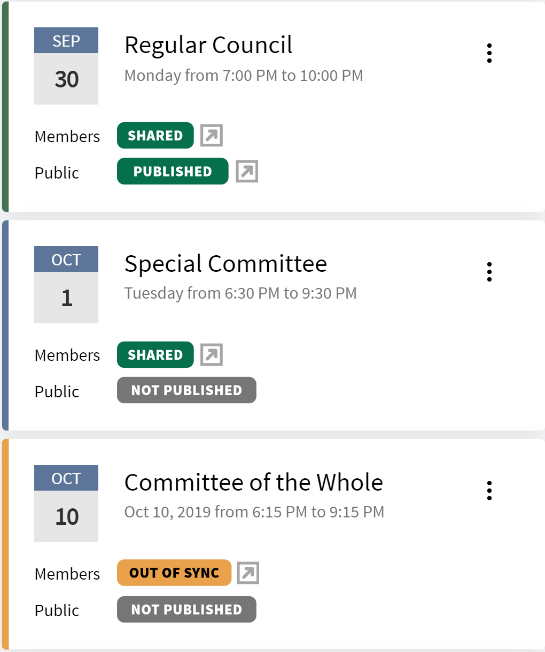
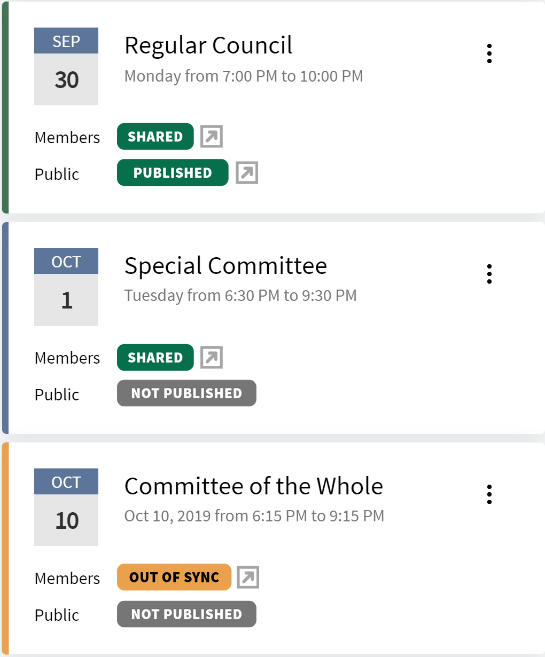
The agenda is shared with group members and admins and published on the Public site. The shared and published agenda is the current version. |
|
|
The agenda is shared with group members and admins. It either has not been published on the Public site, or it has been unpublished , in other words, retracted from public view. The shared agenda is the current version. |
|
|
The agenda is shared with group members and admins. The shared version of the agenda is not the current version. To view the current version, open the Agenda Builder. |
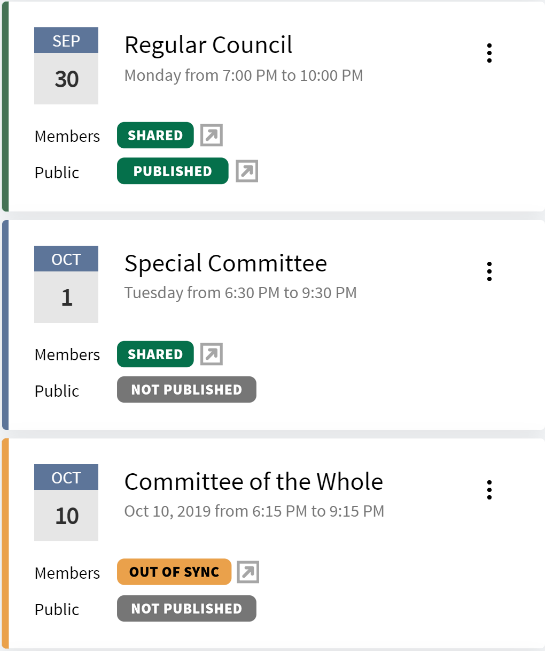
You can update an Out of sync agenda, and then reshare or republish it.
To view the last edited date, last published date, and last shared date, select Edit Agenda.
Public release setting
The Public Release setting determines when public meeting agendas are released to the public. You can release meetings a specified number of days in advance of the meeting, or as soon as you publish the meeting.
To select a public release delay:
-
Select the settings icon from the Agenda section in the meeting template.
-
Select the Publish settings link.
-
Select a release delay date from the Publish public agenda release delay field dropdown menu.
-
Select the checkbox to Show confidential item names/labels on public agenda?
When meetings are created for the future, all settings can be updated except for staging template headings and items.
