Adding row numbers to reports
Row numbers are useful for sequentially identifying each row in a table. You can use a calculated field and an advanced function to add sequential row numbers to your report.
Permissions
Only Report Admins and Report Writers can add row numbers to reports.
Create a calculated field
-
From the Launchpad home page (www.highbond.com), select the Reports app to open it.
If you are already in Diligent One, you can use the left-hand navigation menu to switch to the Reports app.
- Open a report and navigate to the Data tab in Report Builder.
- At the bottom of the data fields list, click Create Calculated Field
 .
.The Calculated Field dialog box opens.
- Next to Calculated Field Name, enter Row.
- Next to Formula Type, select Simple.
- Next to Resulting Field Type, either leave as Auto Detect or select some other option from the dropdown list.
- Leave Search blank, specify 1 in the next field, and click + Add:
- Click Save.
Result A Calculated Fields folder is automatically created in the data fields list, and the newly created calculated field is added to the folder.
Add the calculated field to a report
- Open the Calculated Fields folder in the data fields list.
- Drag the calculated field as the first column in the report.
Result The calculated field is added to the report.
Apply an advanced function to the field
- Click the down arrow
 beside the calculated field, and select Advanced Function.
 - In the Analysis category, select the Accumulative total advanced function.
- Click Save.
Result The advanced function is applied to the calculated field.
Add remaining fields to the report and apply final formatting
- Add any remaining fields to the report.
You can drag fields from the data fields list to the Columns and/or Rows lists.
- In the formatting toolbar, click
 Column Formatting.
The Column Formatting dialog box opens.
- Select the Running total of Row field from the Columns list, and specify the following field values:
- Display Row
- Format Numeric
- Decimal Places 0
- Rounding Round Half Up
- Thousand Separator On
- Show Field On
- Suppress Duplicates Off
- Click
 to close the dialog box.
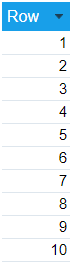
Result Sequential row numbers display in the first column of your report: