
Managing Diligent ESG surveys
When setting up a survey, there are a number of important steps as highlighted below.
-
We recommend that you test your survey (especially if not the commuter survey).
Make sure that all survey questions and text have been created as you would like before sending the survey to a test group of recipients. This list of recipients can be sent in an excel format to Support, include all regions for which each employee is situated so that no region will experience technical issues.
-
You will need to decide on which email address you will be sending this survey from.
For example, survey@accuvio.com or whichever email you will be sending this survey from.
-
Note that the accuvio.com domain will need to be allowlisted by your organisation's IT team across all regions if the survey will be sent from Diligent ESG. We recommend that the accuvio.com domain has been allowlisted across all regions prior to sending test surveys to ensure that no region will experience technical issues.
-
Provide a full list of recipients for the test survey to Support e.g., in an excel format, and if possible, include the regions for which each employee is situated.
-
Provide the outline of the email template you want to send to the recipients.
The email being sent will have a link automatically embedded within the email for each recipient to click on. We also recommend that a contact be provided within this cover email in case recipients have related queries. We can include the contact for support@accuvio.com, but if recipients have any queries regarding the survey and how best to answer, it is best to include a contact from your organization within this cover email.
-
You will need to schedule open and closure dates.
When filling out the survey settings within the survey tool you will be asked to provide key dates for the survey (including survey commencement and closure dates, survey notification dates, survey reminder dates). Make sure that you have placed the same dates (e.g., survey closure date) within the survey settings and the survey cover email. You will also have the option for an email reminder to be sent to all recipients, this requires setting an email reminder date within the survey settings and the same email will be sent out to those who have not submitted a response on this date.
-
Once the above steps have been taken and the accuvio.com domain has been allow listed, test surveys and the release of the full survey will be scheduled to take place.
Troubleshooting tips for Diligent ESG surveys
- When setting commencement, closure, notification, reminder dates, be careful of leap year dates i.e Feb 29th, 30th, 31st
- Page calculations are an advanced feature so do email the Support team regarding this
- You can delete/select multiple items from the auto populate lists
- Always ensure that an email address is included in the settings page or notification, reminders etc will not send
- If after a user has answered a survey and they want to change something then, email the Support team
- For numeric inputs ensure to set a min and max value
- If you want to allow a user to answer a survey multiple times then set the Survey Quota in the settings page. If you are the user, contact your admin or support@accuvio.com
- Always ensure that your IT security team has allowlisted recipient email addresses i.e so that survey links are not all removed from emails and/emails will not be re-directed to Junk/Spam
- Ensure that your IT team has allowlisted the accuvio.com domain or whichever email you will be sending this survey from
- After creating your survey it is always worth testing via sending the survey to a test group of recipients before it is sent to all employees
Adding a survey

-
Select Data Management and select Surveys.
-
Select Add New Survey. You are taken to the survey settings.
Editing survey settings
-
In the Settings page, in the Survey Title field, enter a survey name, for example, Commuter Survey 2023.
-
(Optional) In the Survey Description field, enter a brief description of the survey.
-
(Optional) Enter dates, information, and images into the fields below:
- Survey Commencement Date: The date you want for the survey to begin
- Survey Closure Date: The date you want the survey to end
- Survey Notification Date: The date you want survey recipients to receive an initial email asking them to complete the survey
- Survey Reminder Date: The date you want survey recipients who have not completed the survey receive a reminder email
- Survey Escalated Reminder Date: The date you want the managers of survey recipients who have not completed the survey receive an email to encourage their subordinates complete the survey
- Survey From Email: What email address do you want the survey to come from
- Survey Quota: Leave at 0 unless you want to limit the number of responses you receive
- Survey Quota Per Recipient: Number of times that a user can respond to a survey
- Survey Logo: Add your company logo to the survey if you want by uploading it here
- Post Survey Image: Add a post survey image if you want by uploading it here
- Survey Color Theme: Should you want the survey color theme to match your logo you can choose this here
- Post Survey Description: Should you want to send a post survey thank you message to be sent you can add this here
Tip
Survey from email must have an entry. You can use surveys@accuvio.com . If you want to use your own email, go to Configuring client email for surveys.
After you complete configuring the survey's settings, you can add a page to the survey.
Configuring client email for surveys
If you want to configure your own company email or Domain Name System (DNS) then the following steps must be completed:
-
The client’s IT team provides details of the required email address and whether the domain authentication through DomainKeys Identified Mail (DKIM) is required.
-
Diligent’s Engineering team configures the email or domain on AWS. AWS sends a verification email to the email provided by the client and their DKIM that was required.
-
Diligent’s Engineering team provides database system (DBS) records for the client.
-
The client’s IT team follows up on the verification email and adds DNS record if required.
-
Diligent’s Engineering team confirms the email or domain is ready to use.
Adding a page to a survey
-
After you complete configuring the survey's settings, select New Page to create your survey question.
-
In the Page Name and Page Description fields, enter the details for the page.
-
In the Page Calculations field, enter a formula to calculate a result based on participant responses in multiple questions. For further information, go to Calculating results in surveys.
-
In the Page Logic field, enter a logic statement about what questions should appear when a specific answer is provided in an earlier question. For further information, go to Configuring logic statements in surveys.
-
Select the Enable Activity Data Capture on this Survey Page checkbox to enable activity data capture with each page of the survey.
For example, for a commuter survey, if you want to associate the mileage etc date to a certain building activity, you can do this here. Activity data is numerical data which is normally input into specific data entry forms. For Activity data to be allocated to the correct building or asset, the respondent must first select the building the data should be allocated to. To do this, create an Activity Data Question below for List of Company Building before adding the activity data question. -
In the Question ID section and fields, enter the question number, question, additional guidance, and any footnotes that you want to include. For example, in a Commuter Survey type question, you can enter 'What country are you normally based in?' as the question.
-
Select the Mandatory Question or Key Question checkboxes to decide whether the question is mandatory or will be sorted as a key question.
-
In the Select Question Type section, select a question type from the list. For further information about question types and examples, go to Question type and examples
-
Select Save Page.
-
(Optional) Select Add Question to add another question to the page.
-
(Optional) Select Add New Page to add another page to the survey.
Important
Save after each question or page you add. If you do not only the latest page or question is saved.
Calculating results in surveys
For calculating a result based on a survey participant’s responses in multiple questions you can create a formula as explained below.
The symbols or operators to use in the calculation are:
-
To Sum: +
-
To Multiply: *
-
To Subtract: -
-
To Divide by: /
-
Specify the question ID which is a numeric question type.
-
Use an appropriate operator from the above list.
-
Specify the next question ID which is a numeric question type after the operator.
-
Insert the “=” symbol, followed by the textual answer explanation. This will appear at the top of the survey results page.
-
If you would like to divide the result by 2, or add an actual number into the formula, put that number into brackets before the equals operator.
Each calculation should be on a separate line.
Surround constants by brackets.
Example 1: To add the numeric answer from Question ID 1.2 and the numeric Question from ID 2.3 together you would write: 3.2+2.3=Total
Example 2: To add the numeric answer from Question ID 1.2 and divide it by the number 2, and to sum the result with the numeric answer from Question ID 2.3 you would write: 1.2/(2) + 2.3 = Total
Example 3: To group a textual answer like currency (using question id 1.1) with a numeric answer like currency amount (using question id 1.2) you would write: 1.2=groupby(1.1)
Configuring logic statements in surveys
To display a question only when a specific answer is provided in an earlier question, you can use a logic statement. Each statement should be on a separate line.
The symbols and operators to use are as follows:
Format ('QuestionID' '=' 'Answer' '=>' 'Show Question')
Example 1: If you want Question 1.2 to be displayed to the user only if the answer the user selects from the dropdown in Question 1.1 is “Yes”, then you would use the following logic statement: 1.1=Yes=>1.2
This can be read as IF Answer to 1.1 is “Yes” then show the user question 1.2.
Example 2: If you want Question 2.5 to be displayed to the user only if the answer the user selects from the dropdown in Question 1.5 is not equals to “5 Weeks”, then you would use the following logic statement: 1.5!=5 Weeks=>2.5
This can be read as IF Answer to 1.5 is NOT “5 Weeks” then show the user question 2.5.
Selecting recipients for a survey
-
In the Surveys page, select Recipients beside the survey you want to add recipients to.
-
In the Recipient Management window, if you select the Create Recipients List tab, you can create recipients list using one of the following three methods:
-
Create a new recipient group enter the new group name in the field below and select Add New List. You can either manually add recipients individually or upload them using Excel.
-
Add recipients select one of the Recipient Groups, enter their email address and company name in the associated fields and select Add Recipient.
-
Upload Excel list of recipients add all survey recipients to an Excel file, select Upload Recipients and select your recipients Excel file.
-
-
Select the Survey Recipients tab.
-
Select the Select one dropdown, select a recipient group, and select Add List to Survey.
-
Select Finished.
Notifying or reminding survey recipients to respond
-
In the Surveys page, select Remind beside the survey you want to send reminders or configure an initial notification for.
-
Select the Email Template tab.
-
Select the Select one dropdown, select Notifications, Reminder, or Escalation Reminder. A default email template for each options appears in the field below that you can edit similar to Word. Use notifications for initial alerts, reminders for a gentle first time reminder, and escalation reminders for urgent reminders to users who have not yet responded
-
Select Save template when finished creating the notification or reminder.
-
Select the Recipients Listtab, and in the Recipient Groups field, select the recipient list to receive the survey.
-
Select the Select one dropdown, select Notifications, Reminder, or Escalation Reminder , and decide whether to send the alert to all or only new recipients in the group.
-
(Optional) Select the Schedule for a future date checkbox and select a date and time for the reminder or notification.
-
Select Send reminder Now or if you schedule a future time, select Send at Specified Date and Time.
Viewing survey responses
-
Select the Responses tab beside the survey you want to view responses of.
-
Select Search to view all responses.
-
Alternatively, select the Select Question dropdown and select a specific question to view responses for that particular question.
Question type and examples
Multiple Choice (Select One)
As you will see from the below example question 'Do you have an environmental Target?' you enter the question in the appropriate box as usual with any additional info/footnotes etc you may want. You can also make this a mandatory or key question if required. In the Choice List/Advanced box you can enter your choices manually into the below highlighted box giving each a score (Eg. 1=Yes, 0=No) and then click Add Choice to List. If you want to delete any of the choices you have entered highlight the choice from the grayed box to the right and click the X button the right. You can also choose from an auto-populated list of answers, select the list from the dropdown menu and click Auto-Populate List. Once you have entered all your Choices then click Add Question.


Multiple Choice (Select Many)
This question is where you want the user to be able to select multiple answers from a given list of choices
As you will see from the below example question 'What environmental data do you usually collate?' you enter the question in the appropriate box as usual with any additional info/footnotes etc you may want. You can also make this a mandatory or key question if required. In the Choice List/Advanced box you can enter your choices manually into the below highlighted box giving each a score (Eg. 1=Water, 0=None, Waste=1 etc) and then click Add Choice to List. If you want to delete any of the choices you have entered highlight the choice from the grayed box to the right and click the X button the right. To delete multiple entries, click the choices while holding the Ctrl button on your keyboard. You can also choose from an auto-populated list of answers, select the list from the dropdown menu and click Auto-Populate List. Once you have entered all your Choices then click Add Question.


In the advanced section you can ask users to give further information for explanation for certain choices. In the below example I am asking the user to explain why they would have chosen None from the list. You can have a message displayed to the user if they try to leave the explanation blank. You can also ask for a user to provide an attachment for certain answers. For example they may say their building is ISO 14001 certified and you may ask them to attached evidence of this.

Drop Down List
This question is where you want the user to be able to select a single answer from a given dropdown list of choices
As you will see from the below example question 'In what country are you based?' you enter the question in the appropriate box as usual with any additional info/footnotes etc you may want. You can also make this a mandatory or key question if required. In the Choice List/Advanced box you can enter your choices manually into the below highlighted box and you can give each answer a score if this is applicable (Eg. 1=UK, 2=USA, 3=Ireland etc) and then click Add Choice to List. If you want to delete any of the choices you have entered highlight the choice from the grayed box to the right and click the X button the right. To delete multiple entries, click the choices while holding the Ctrl button on your keyboard. You can also choose from an auto-populated list of answers, select the list from the dropdown menu and click Auto-Populate List. Once you have entered all your Choices then click Add Question.


In the advanced section you can ask users to give further information for explanation for certain choices. In the below example I am asking the user to explain why they would have chosen Ireland from the list.

Searchable Drop Down List
This question is where you want the user to be able to select a single answer from a given dropdown list of choices. There maybe numerous possible choices (Eg. City list) so this question type allows users to search the dropdown list by entering the first letters of their answer.
As you will see from the below example question 'In what city are you based?' you enter the question in the appropriate box as usual with any additional info/footnotes etc you may want. You can also make this a mandatory or key question if required. In the Choice List/Advanced box you can enter your choices manually into the below highlighted box and you can give each answer a score if this is applicable (Eg. 1=London, 2=Florida, 3=Paris etc) and then click Add Choice to List. If you want to delete any of the choices you have entered highlight the choice from the greyed box to the right and click the X button the right. To delete multiple entries, click the choices while holding the Ctrl button on your keyboard. You can also choose from an auto-populated list of answers, select the list from the dropdown menu and click Auto-Populate List. Once you have entered all your Choices then click Add Question.


In the advanced section you can ask users to give further information for explanation for certain choices. In the below example I am asking the user to explain why they would have chosen Paris from the list.

Single Line Text
This question type would be used when you want to allow users free reign to enter whatever text answer they want. Answers are limited to one single line of text.
There is no choice list/advanced section to this question type as per earlier questions.

Multiple Line Text
This question type would be used when you want to allow users free reign to enter whatever text answer they want. Unlike the above they are not limited to one line of text.
There is no choice list/advanced section to this question type as per earlier questions.

Numeric Input
This question type is used when you want a numerical response only.
In the below example I am asking the user 'How many environmental projects are you working on currently?' which would only require a numerical response.
You can set a minimum or maximum answer value. Eg. If you are asking the user the number of days they work from the office you can set a maximum value of 5.

Numeric Slider
This type of question like above would be used when the answer can only be numerical. Instead of the user being able to input a figure into a box per above they will be presented with a slider (see below image) which they can move left/right to the number they require. 
Per above questions you can set a minimum and maximum value.

Date Picker
This question is used when you want the user to provide a date for their answer.
In the example you would be asking the user to answer to what date they started working at the company

List Question (table layout with multiple question types in each Column)
With the list question users will be presented with a table layout with multiple question types in each column.
The software will ask you to select how many columns you want in the table using a dropdown list.
The software will then present you with options of what question type you want for each column and if you want the column to be mandatory.
Follow above instructions for each question type


Currency
This question would only allow users to answer from a provided list of currencies Eg. Euro, USD, GBP etc
Using the dropdown menu you can select the choices that will be available to users to select from.
You can also select reference dates for the period the answer will refer to for conversion calculation purposes. Eg. You may ask what currency the employee was paid in for 2019 therefore you would enter 2019 dates for conversion calculations.


Employee commuter survey
The Employee Commuter Survey is a survey sent out to all relevant staff of an organisation to determine how they get to and from their workplace, so that the subsequent Scope 3 Employee Commuter emissions can be determined. This includes how often they commute per week, what mode of transport they use, and how long their commute is.
Upon completion of the survey, each respondent receives a notification of their overall emissions being emitted during their commute.
The results of each individual survey is tracked within the Survey Module for reporting purposes, and the relevant emissions are tracked and directed into the appropriate Employee Commuter activities at each individual site. Subsequently, the associated Scope 3 Employee Commuting emissions will appear within both the GHG Dashboards and GHG Reports.
The Diligent ESG team can provide you with a Commuter Survey template for review before this is enabled within your account. Contact the Support team if you wish to inquire further.
Creating a commuter survey
In Commuter survey question types, if you want numerical answers to the survey to form the basis of the greenhouse calculations in the main software, complete the following steps:
-
Complete Steps 1 to 5 of Adding a page to a survey.
-
In the date pickers, enter the date range that the activity data applies to, and in the dropdown, select Employee Commuting. Be mindful of leap years, for example, Feb 29th, 30th and 31st.
-
Follow Steps 6 and 7 in Adding a page to a survey
-
Select the Activity Data Question checkbox.
-
In the Select the type of Activity Data question section, for a 'What country are you based in?' commuter survey question, select List of Company Countries.
-
Select Add Question. Now you have established what country the user is based in you must establish what building or office in this country that the user is based.
-
Create a new question as outlined in Steps 3 and 4, and in the Select the type of Activity Data Question section, select List of Company building.
Note
For the second Commuter Survey type question, enter 'What office are you based in?' or similar as the question.
-
Select Add Question and select Save Page. Now you have established what office the user is based in you must establish how many days per week on average do they normally commute to the selected office.
-
Create a new question as outlined in Steps 3 and 4, and in the Select the type of Activity Data Question section, select Activity data value quantity input and select Drop Down list.
Note
For the third Commuter Survey type question, enter 'How many days per week on average do you normally commute to the selected office?' or similar as the question.
-
In the Add choices for the user to select field, enter the answers you want to appear for users and select Add choice to list for each answer.
-
Select Add Question and select Save Page.The next suggested question for an employee commuter survey would be 'Provide the details of at least one segment of your daily commuting journey?'.
-
Create a new question as outlined in Steps 3 and 4, and in this example Select the type of Activity Data Question section, select Commuting or Travel Related Question.
Note
For the third Commuter Survey type question, enter 'Provide the details of at least one journey segment of your daily commuting journey?' or similar as the question.
-
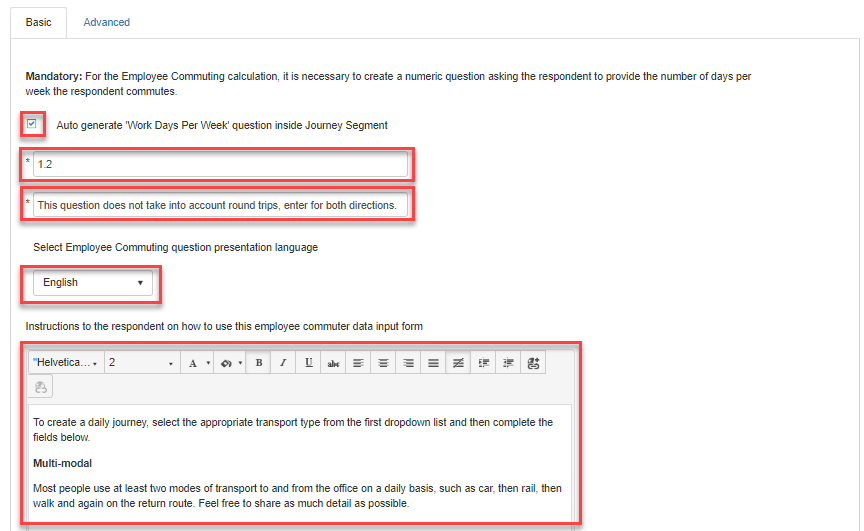
In the Basic tab, enter the question number of the earlier question 'How many days per week on average do you normally commute to the selected office?', any additional instructions or explanatory text for the respondent, and select from a choice of four languages, English, Portuguese, Spanish and French.
-
Select the Advanced tab and enter any non-GHG related modes of transport and select Add. These are modes of transport that do not have an associated emissions, such as walking or cycling. Add these by entering the activity names in the box highlighted below then clicking Add. Select the Delete icon X to delete any entries.
-
Select Save Page.
Note
Ensure to create an Activity Data Question for List of Company buildings before adding an activity data question.
Note
For the first Commuter Survey type question, enter 'What country are you based in?' or similar as the question.
