
Navigating book content
For the optimal web experience, continuous scrolling is enabled. Continuous scrolling allows you to navigate the book by moving down the page. For a traditional experience, you can use page by page scrolling to turn the pages forward or back, like a paper book. To go to a specific section or page in the book, use the Navigation panel. Each option to navigate book content is described below.
Continuous scrolling
By default, continuous scrolling is enabled. Continuous scrolling improves navigation on web pages. You can read book content by moving down the page. When you reach the bottom of the page, the next page automatically appears underneath.
Page by page scrolling
This section describes how to enable page by page scrolling and navigate book content.
Enable page by page scrolling
With page by page scrolling, you can turn pages forward or back, like a paper book.
-
From the page view, select the View options icon
 on top of the screen.
A dropdown menu appears.
-
Select Page by page scrolling.
Navigate page by page
Use the navigation toolbar at the bottom of the page to turn book pages. Below is a description of the items in the navigation toolbar.

| Item | Description |
|---|---|
 Current page number Current page number |
Select the editable field around the current page number, and then enter the page you want to go to |
 Back arrow Back arrow |
Go to the previous page |
 Forward arrow Forward arrow |
Go to the next page |
 Agenda Agenda |
The Agenda panel opens. You can view the meeting agenda in the Agenda panel. Note The Administrator must add an agenda to the book in order for it to be displayed in the Agenda panel. |
 Current zoom level Current zoom level |
View the current zoom level. By default, the zoom level is set to 100%. |
 Zoom in Zoom in |
Increase the zoom level |
 Zoom out Zoom out |
Decrease the zoom level |
The Navigation panel
The Navigation panel allows you to quickly view and navigate the contents of a book. This section describes how to open the Navigation panel and go to a specific page.
-
Select the Navigation icon
 on the left side of the page.
The Navigation panel expands.
-
A row of icons allows you to choose what book feature you prefer to display in the panel. By default, the Structure view is selected.
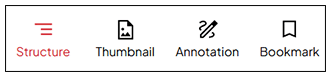
The following options are available:
-
Structure lists all the tabs and sub-tabs in the book. The tab number and page title are displayed.
-
Thumbnail shows a miniature version of every page in the book
-
Annotation displays a preview of the notes and annotations on each page
-
Bookmark lists the pages you have bookmarked
-
-
Select a viewing option to change the display in the Navigation panel.
-
The current page you are viewing is highlighted in the Navigation panel.
-
Select any item in the Navigation panel to go directly to the relevant section in the book.
