Applying remediation workflows to Collections
Workflows control the remediation process that records can follow. Each workflow defines the way a record can transition from status to status, as well as which user groups can transition the records through different stages of the workflow.
What is a workflow?
A workflow consists of one or more status groups. Each status group specifies:
- one or more user groups that are part of the status group
- the statuses available to the user groups when processing assigned records
Status groups proceed in sequence from start to finish, and this sequence defines the workflow that records follow during the remediation process for the Collections that use the workflow.
Note
It is ideal to follow the start-to-finish sequence for the remediation process; however, you can also choose to have your own sequence.
Before you begin
Before you can apply a remediation workflow to a Collection, you must create one or more workflows. When you create the workflow, you define the statuses and user groups that are included.
Once a workflow exists, you can assign it to one or more Collections to define how records are remediated in the Collections.
For information about creating workflows, see Creating workflows in the Results app.
Bulk processing and workflow transitions
Members of each status group can only view and apply the statuses defined in the workflow. However, in the following cases, additional statuses may be shown even if the workflow restricts them from some of the records you are processing:
- when bulk processing records as a member of more than one status group that is assigned records
- when bulk processing unassigned records and assigned records at the same time
If you specify a status that the workflow restricts for some records, only the record transitions that the workflow permits are successfully updated.
Apply a workflow to a Collection
Note
Only Results Admins and Professional Managers can complete this task.
-
From the Platform home page (www.diligentoneplatform.com), select the Results app to open it.
If you are already in Diligent One, you can use the left-hand navigation menu to switch to the Results app.
Note
Diligent One Platform also supports the domain www.highbond.com. For more information, see Supported domains.
- Find the collection you want to modify, click
 , and click Settings.
 - Under Workflow, select the appropriate workflow from the list.
- Click Save. The workflow is applied to the specified collection. You can view which Collections have applied workflows by hovering your mouse over # Collections on the Manage Workflows page.
Examples
Example 1: P-Card management workflow
Scenario
You have a P-Card management program where clients submit their receipts through an approval process. You need to specify which users can close record as part of the approval process within the P-Card Management collection.
Three auditors on your team are responsible for reviewing records, and belong to the North America group:
- Rick
- Sanjeet
- Jia Wen
Two people on your team are responsible for closing records, and belong to the Asia-Pacific group:
- Jim, a Manager
- Sarah, a Data Analyst
Process
You create an Approval process workflow that includes the North America and Asia-Pacific groups. You assign the Open, In Review, and Awaiting Confirmation statuses to the North America group, and the Closed status to the Asia-Pacific group. You apply the workflow to the P-Card Management collection.
Result
Within the P-Card Management collection:
- Rick, Sanjeet, and Jia Wen can only move record to the Open, In Review, and Awaiting Confirmation statuses, and cannot close records.
- Jim and Sarah can close records using the Closed status.
Example 2: investigating fraud transactions workflow
Scenario
You work for a large national bank and need to define a workflow to investigate potential fraud transactions. The national bank has 30 locations, with each location comprised of 10 employees and 1 branch manager. There is also a corporate head office that oversees of all the branch locations.
The following table describes the workflow that needs to occur, beginning with employees:
| Professional group | Need to identify records as: |
|---|---|
| 1. Employees |
|
| 2. Branch Managers |
|
| 3. Corporate Head Office |
|
Process
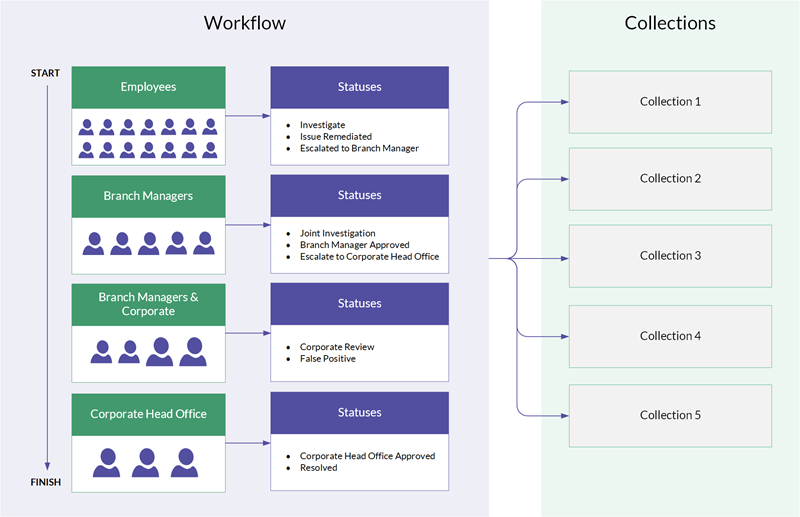
You create an Investigating fraud transactions workflow that includes the following groups:
- Employees
- Branch Managers
- Branch Managers & Corporate
- Corporate Head Office
You needed to create a combined group (Branch Managers & Corporate) because two statuses (Corporate Review and False Positive) need to be accessible to both Branch Managers and the Corporate Head Office.
You assign the:
- Investigate, Issue Remediated, and Escalated to Branch Manager statuses to the Employees group.
- Joint Investigation, Branch Manager Approved, and Escalated to Corporate Head Office statuses to the Branch Managers group.
- Corporate Review and False Positive statuses to the Branch Managers & Corporate group.
- Corporate Head Office Approved, and Resolved statuses to the Corporate Head Office group.
You apply the Investigating fraud transactions workflow to 5 collections.
Result
The following diagram illustrates the statuses each group has access to, based on the defined workflow. The workflow is applied to 5 collections.
The start to finish arrow indicates generally how records will be moved through the remediation process, starting with employees and ending with corporate head office.