Overview of your Diligent Workflow landing page
When you sign-in to your diligent account you are taken straight to your landing page and Dashboard view.
This is where you can manage tasks that are assigned to you as well as tasks you have created. You can set your profile preferences, and view your calender.
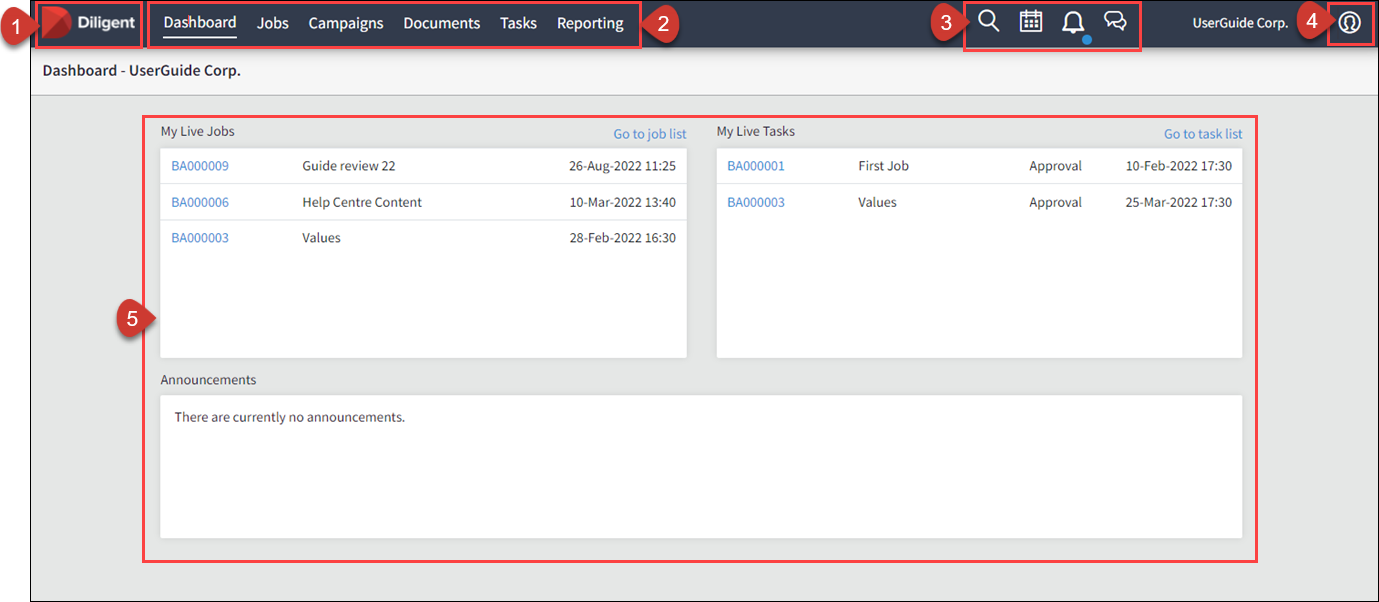
1. Company logo
Select the logo to return to your Dashboard view.
2. Tabs
Each tab displays information relevant to its area, except for the Dashboard tab.
| Tab name | Description |
|---|---|
| Dashboard |
Provides a quick overview of jobs, tasks, and recent announcements for your assigned business areas. For more information go to Page options. |
| Jobs |
Displays the jobs you have created, those assigned to you, and any jobs within your business area. For more information go to Jobs. |
| Campaigns and Projects | The label of this tab depends on your organisation's requirements. You can view the campaigns you are associated with. For more information go to Create a new campaign or project. |
| Documents | Stores your documents and reference materials. For more information go to Manage documents |
| Tasks |
Details the tasks that have been assigned to you. For more information go to Manage Tasks . |
| Reporting |
Note This feature is only available to Global Administrators. As administrator you can extract and download reports on multiple data points. For more information go to Run a report. |
3. Quick links on my toolbar
The icons on your toolbar give quick access to certain regularly used features.

-
Search Enter search criteria to find specific documents, tasks, jobs, and campaigns. For more information go to Search for an item.
-
Calendar Your calendar displays items assigned to you or in your business area in a Week or Month view. Select an entry to go to an item and its details. For more information go to View your calendar.
-
Notifications View notifications on the progress or status of a job or task and go directly to the job or task from the notification. A blue dot indicates a new notification. For more information go to View notifications.
-
Discussions View and respond to discussions that are conducted through Diligent Workflow. A blue dot indicates a new message. For more information go to Use the discussions channel.
4. Profile icon
Your profile is where you change personal details, set preferences, add a photo, change a password, and access the Administration site if you have permission. For more information go to Edit my profile.
5. Content view section
The content section within each tab displays information relating to that area.
Your Dashboard view
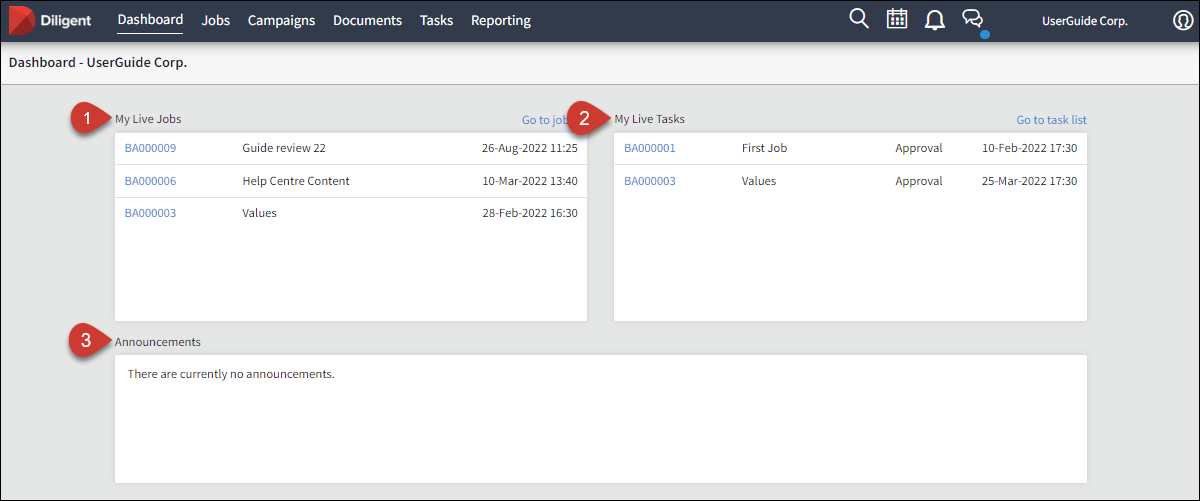
The Diligent Workflow Dashboard tab provides a quick overview of jobs, tasks, and recent announcements for your associated business areas. You can select a link to go to any job or task. Diligent Workflow is a custom built product so the rules, values and options available to you have been determined by your organization.\
-
My Live Jobs displays the six most recent jobs created by or assigned to you as owner. Select Go to jobs list to see all your Jobs.
-
My Live Tasks displays up to six tasks that have been assigned to you with the earliest due date. Select Go to Task list to view additional tasks.
-
Announcements displays notifications created by your Administrator for your business areas.
